Illumina NovaSeq 6000 Integration v2.1 - Validation and Troubleshooting Guide
This guide explains how to validate the installation of the Illumina NovaSeq 6000 Integration Package v2.1.
The validation process involves:
|
•
|
Running samples through the NovaSeq Validation Library Prep (NovaSeq 6000 v2.0) workflow. |
|
–
|
The workflow contains a single-step protocol that models the library prep required to produce normalized libraries. At the end of the step, the normalized libraries are automatically advanced to the NovaSeq 6000 v2.0 workflow. |
|
•
|
Running normalized libraries through the NovaSeq 6000 v2.0 workflow. This validates the following: |
|
–
|
Successful routing of samples from the Run Format (NovaSeq 6000 v2.0) step to the NovaSeq Standard (NovaSeq 6000 v2.0) step. |
|
–
|
Automated generation of a sample sheet for use with bcl2fastq2 v2.19 analysis software. |
|
–
|
Automated generation of a run recipe file (JSON file) with the library tube barcode as the name (e.g., AB1234567-CDE.json). This file is automatically uploaded to the sequencing instrument and used to set up and initiate the run. |
|
–
|
Automated tracking of the NovaSeq sequencing run and parsing of run statistics (per run per lane) into the LIMS. |
Before you begin
Before you begin to execute the validation steps below, note that these steps assume that you have installed the Illumina NovaSeq 6000 Integration Package v2.1 and have imported the default LIMS configuration.
Validation steps
1. Activate the workflow
|
•
|
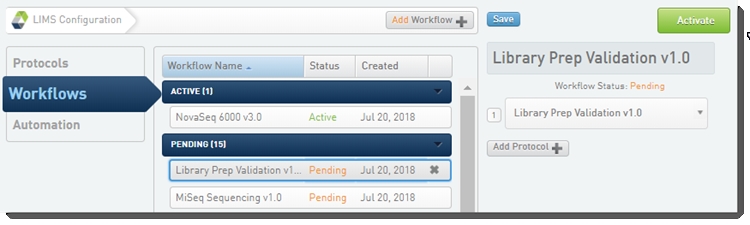
In the LIMS configuration area, activate the NovaSeq Validation Library Prep (NovaSeq 6000 v2.0) and NovaSeq 6000 v2.0 workflows. |
2. Create a project, add samples
|
1.
|
On the Projects and Samples screen, create a project and add samples to it. |
|
2.
|
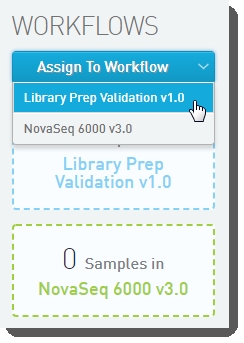
Assign your samples to the NovaSeq Validation Library Prep (NovaSeq 6000 v2.0)workflow. |
3. Run NovaSeq Validation Library Prep (NovaSeq 6000 v2.0) step
|
1.
|
In Lab View, locate the NovaSeq Validation Library Prep (NovaSeq 6000 v2.0) protocol. You will see your samples queued for the NovaSeq Validation Library Prep (NovaSeq 6000 v2.0)step. |

|
2.
|
Add the samples to the Ice Bucket and begin work. |
|
3.
|
On the Ice Bucket screen, in the Reagent Label Options panel, select a group of reagent labels from the drop-down list and click Begin Work. |
|
4.
|
On the Placement screen: |
|
a.
|
In the Placed Samples area on the right, in the container field, scan or enter the barcode of the destination container. |
|
b.
|
Select the samples from the Samples to be Placedarea on the left, and then drag them over to the container wells on the right. |
|
5.
|
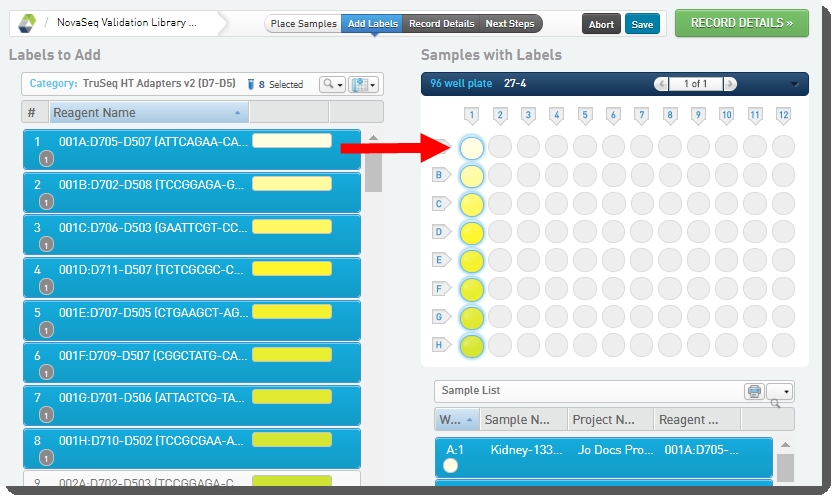
On the Add Labels screen, the Labels to Add list is populated with labels from the TruSeq HT Adapters v2 (D7-D5) label group. This is the only label group configured in the out-of-the-box integration and it is used by default in this step. |
|
a.
|
Select reagent labels on the left, and drag them over to the container on the right to assign them to placed samples. |
|
6.
|
On the Record Details screen: |
|
a.
|
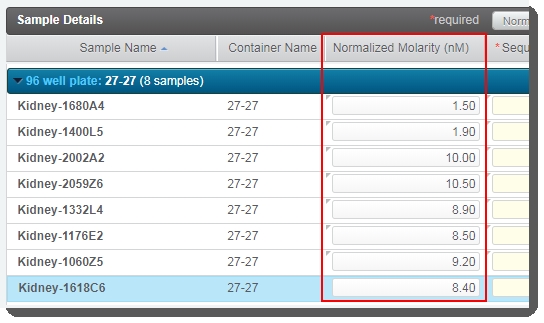
In the Sample Details table, enter values for Normalized Molarity. You can type values individually, or use Copy/Paste functionality to enter multiple values from a spreadsheet (see note below). |
|
b.
|
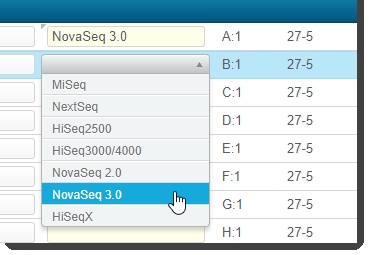
The Sequencing Instrument column indicates the instrument to be used for the sequencing run. Select NovaSeq 3.0. |
You can populate the fields in this column using one of the following methods:
|
•
|
To populate fields individually for each sample: |
|
–
|
Select from the drop-down list in each row. |
|
•
|
To populate fields all at once: |
|
–
|
Use Copy/Paste to enter multiple values from a spreadsheet (see Note below). |
|
–
|
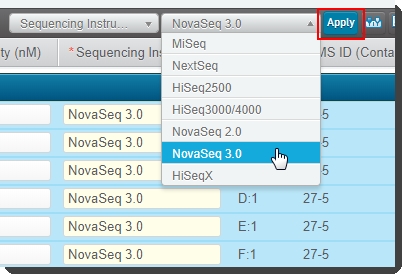
Alternatively, click inside the table and press Ctrl + A to select all rows. At the top of the table, select Sequencing Instrument and then select NovaSeq 3.0 from the adjacent drop-down list. Click Apply. |
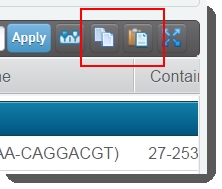
If you are working with a large number of samples, you can use Copy / Paste functionality to enter multiple values from a spreadsheet.
|
1.
|
Click the Copy Samples button to copy the sample information from the LIMS to the Clipboard. |
|
2.
|
Open a blank Excel document and paste the contents of the Clipboard into the spreadsheet. |
|
3.
|
In the spreadsheet, enter the Normalized Molarity values. Select the entire spreadsheet, including the headers (Ctrl + A ), and copy (Ctrl + C) the information to the Clipboard. |
|
4.
|
In the LIMS, click the Paste Samples button. Paste the contents of the clipboard (Ctrl + V ) into the Update Table window and then click Update to paste into the Sample Details table. |
|
•
|
This triggers the Next Steps automation, which sets the value of the next step (for all samples) to Remove from workflow. Note that the Routing Script automation expects this value and requires it in order to successfully advance samples to the next step. |
|
6.
|
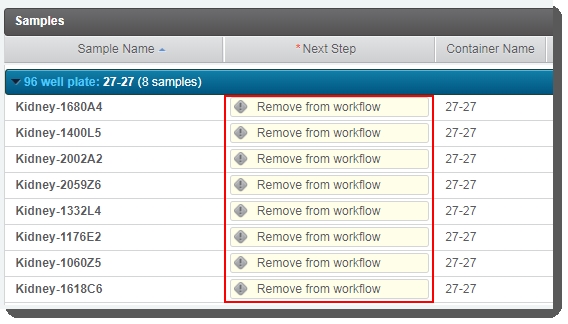
On the Assign Next Steps screen, in the Samples table, the Next Step for all samples is pre-populated with Remove from workflow. |
 Do not change this value! If Next Step is not set to Remove from workflow, the routing script will not be able to route samples correctly.
On exit from the step, the Routing Script automation is triggered. This automation assigns samples to the first step of the NovaSeq 6000 v2.0 workflow - Define Run Format (NovaSeq 6000 v2.0). This is the only step in Protocol 1: Run Format (NovaSeq 6000 v3.0).
4. Run Define Run Format (NovaSeq 6000 v2.0) step
|
1.
|
In Lab View, locate the Run Format (NovaSeq 6000 v2.0) protocol. You will see your samples queued for the Define Run Format (NovaSeq 6000 v2.0)step.  |
|
2.
|
Add the samples to the Ice Bucket and begin work. |
|
3.
|
On the Record Details screen, in the Sample Details table, note the following fields:Loading Workflow Type: As this version of the integration only supports the standard workflow, this field is pre-populated by the LIMS with the value NovaSeq Standard. |
|
•
|
Normalized Molarity: These values are copied over from the previous step. (If the user did not populate this column during library prep, they can enter the values here.) |
|
4.
|
Populate the following fields (values can vary across samples):Flowcell Type: Select S1, S2, or S4. |
|
•
|
Final Loading Concentration (pM): You may select from the two preset options - 225 (for PCR-free workflows) or400 (for Nano workflows), or you may enter a different value. |
|
5.
|
Click Next Steps. This triggers the Next Steps automation, which does the following: Sets the value of the next step (for all samples) to Remove from workflow. The Routing Script automation expects this value, and requires it in order to successfully advance samples to the next step. |
|
•
|
Calculates the Minimum Molarity. |
|
•
|
Checks Normalized Molarity value. For samples with no Normalized Molarity value (i.e., empty value, not including 0), generates an error message informing the user that the field cannot be empty. |
|
•
|
Compares each sample's Normalized Molarity value with the Minimum Molarity value. |
|
6.
|
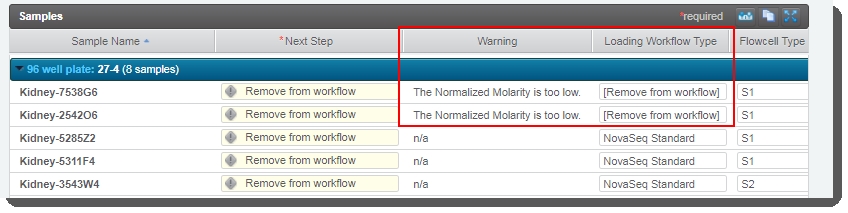
On the Assign Next Steps screen: In the Sample Details table, the Next Step for all samples is pre-populated with Remove from workflow - regardless of the Loading Workflow Type. Do not change this value! If Next Step is not set to Remove from workflow, the routing script will not be able to route samples correctly. |
|
•
|
For samples whose Normalized Molarity value was found to be lower than the Minimum Molarity value, the Loading Workflow Type is set to Remove from workflow and a message is recorded in the Warning field for the sample. |
|
•
|
At this point you have two options: Return to the Record Details screen and adjust the Normalized Molarity value so that it equals or exceeds the Minimum Molarity value. You will also need to set the Loading Workflow Type to NovaSeq Standard. |
|
•
|
Complete the protocol without correcting the Normalized Molarity value. In this case, the samples in question will be removed from the LIMS workflow. |
|
7.
|
Click Finish Step. The Routing Script automation is triggered: Samples whose Loading Workflow Type is set to Remove from workflow (i.e., whereNormalized Molarity value is lower than the Minimum Molarity) are removed from the LIMS workflow. |
|
•
|
Samples whose Loading Workflow Type is NovaSeq Standard are routed to the Make Bulk Pool for NovaSeq Standard (NovaSeq 6000 v2.0) step. This is the first of two steps in the NovaSeq Standard (NovaSeq 6000 v2.0) protocol. |
5. Run Make Bulk Pool for NovaSeq Standard (NovaSeq 6000 v2.0) step
|
1.
|
In Lab View, locate the NovaSeq Standard (NovaSeq 6000 v2.0) protocol. You will see your samples queued for the Make Bulk Pool for NovaSeq Standard (NovaSeq 6000 v2.0)step.  |
|
2.
|
On the Queue screen, add samples of the same Flowcell Type to the Ice Bucketand begin work. 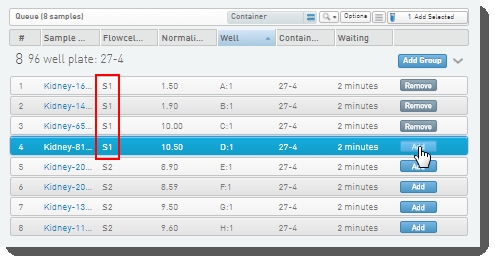 |
|
3.
|
On the Pooling screen: Create a pool by dragging samples into the Pool Creator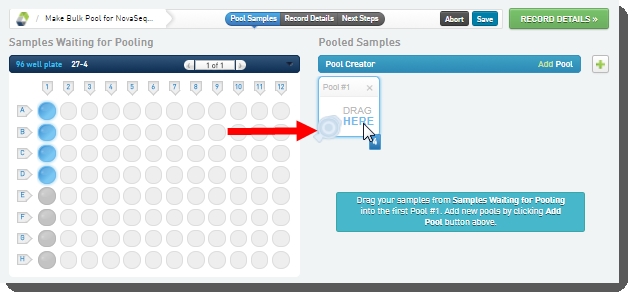 |
|
•
|
You can type a name for the pool, or accept the default name - Pool #1. 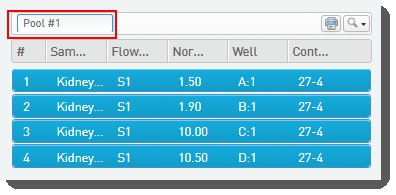 |
|
4.
|
On exit from the Pooling screen, the Validate Inputs Flowcell Type and Single Pool is triggered. The automation checks that: All samples in the pool have been assigned the same Flowcell Type. |
|
•
|
Only one pool has been created. |
|
5.
|
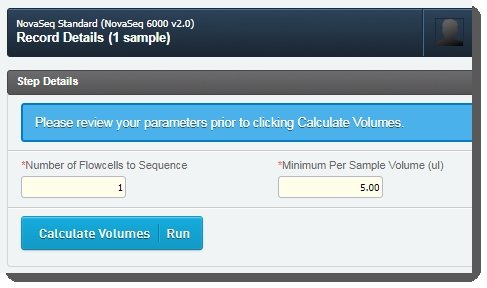
On the Record Details screen, the Step Details area contains two required fields:Number of Flowcells to Sequence: The value entered in this field is used in volume calculations, to ensure that volumes are sufficient for the number of times the pool will be sequenced. |
|
•
|
Minimum Per Sample Volume (ul): The value in this field is used to calculate how much of each sample will be included in the pool. The field is pre-populated with the configured default value - 5 ul, but may be edited if required. |
|
Note:
Assuming the default Minimum Per Sample Volume (ul) value of 5, for a given batch:
1. If the smallest Per Sample Volume (ul) value is less than 5, the LIMS automatically assigns a value of 5 to the sample's Adjusted Per Sample Volume (ul) field.
2. The LIMS then adjusts the Adjusted Per Sample Volume (ul) field value for all other samples in the batch, based on the ratio used to increase the lowest value to 5.
|
|
•
|
In the Sample Details table, you can click on the pool icon to view details on the pool composition. |
|
•
|
Click Calculate Volumes. This triggers the Calculate Volumes automation, which performs volume calculations based on the selected Flowcell Type : Calculates Bulk Pool Volume (ul) value. |
|
–
|
Calculates the Per Sample Volume (ul) value to be added to the pool. |
|
–
|
Calculates the Total Sample Volume (ul) value. |
|
–
|
If the Total Sample Volume is less than the Bulk Pool Volume, calculates the RSB Volume (ul) value. |
|
–
|
Populates the Flowcell Type and Loading Workflow Type columns of the Sample Details table. |
|
–
|
Populates the Volume of Pool to Denature (ul), NaOH Volume (ul) and Tris-HCI Volume (ul) columns of the Sample Details table. (Values are set by a script and are not editable by the user.) |
|
–
|
The automation also generates the Calculation File (CSV) and attaches it to the step. This file contains volume information about the pool and the individual samples it contains. Click on the file to download it and then open it in Excel.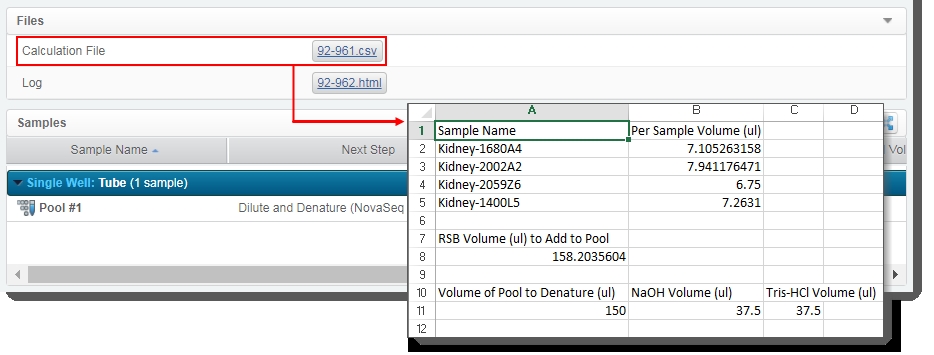 |
|
•
|
Click Next Steps. This triggers the Set Next Step automation. This automation sets the next step for samples to ADVANCE, advancing them to the next step in the protocol - Dilute and Denature (NovaSeq 6000 v2.0). |
|
6.
|
On the Assign Next Steps screen, the next step for samples is already set to the next step in the workflow - Dilute and Denature (NovaSeq 6000 v2.0). 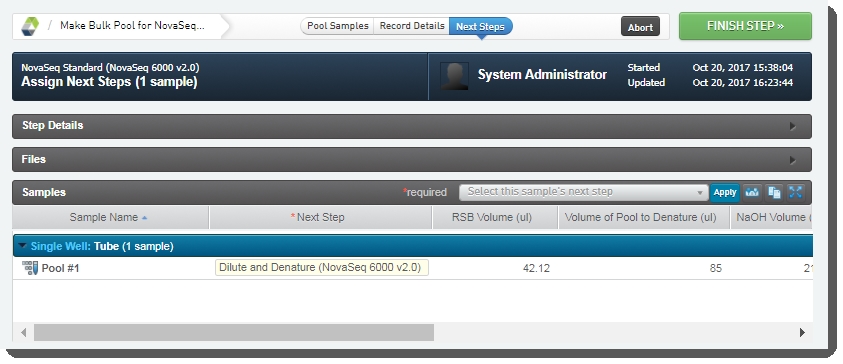 Click Finish Step. Click Finish Step. |
At the end of this step, the pool of samples automatically advances to the Dilute and Denature (NovaSeq 6000 v2.0) step.
6. Run Dilute and Denature (NovaSeq 6000 v2.0) step
|
1.
|
In Lab View, locate the NovaSeq Standard (NovaSeq 6000 v2.0) protocol. You will see the pool of samples queued for the Dilute and Denature (NovaSeq 6000 v2.0) step. |
|
2.
|
Add the samples to the Ice Bucket and begin work. At the beginning of the step, the Validate Single Input automation is triggered. This automation checks that there is only one container input to the step. |
|
3.
|
On the Placement screen: Drag the pool into the library tube in the Placed Samples area. 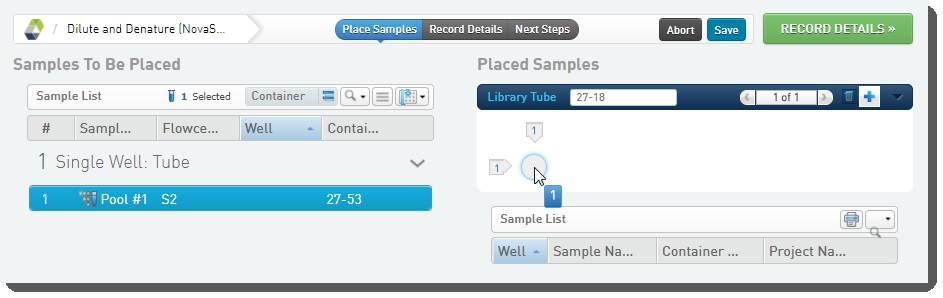 |
|
•
|
Scan or type the barcode of the library tube into the Library Tubefield. 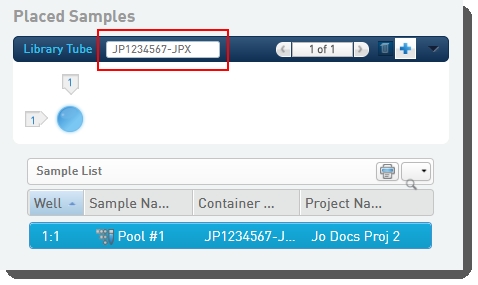 |
|
•
|
Click Record Details.On exit of the Placement screen, the Validate Library Tube Barcode automation checks that the library tube barcode conforms to the barcode mask [A-Za-z]{2}[0-9]{7}-[A-Za-z]{3}, and displays an error message if this is not the case. |
|
4.
|
On the Record Details screen, the Reagent Lot Tracking section lets you track the NaOH, Resuspension Buffer, and Tris-HCI reagents used in the step. You will need to add and activate lots for these reagents. To add and activate reagent lots: |
|
•
|
In a new browser tab, open an additional instance of the LIMS. Navigate to the Configuration > Consumables tab. |
|
•
|
Select the NaOH reagent kit and click New Lot. |
|
•
|
Enter the lot details and click Save. |
|
•
|
Set the Status of Reagent Lot toggle switch to Active. 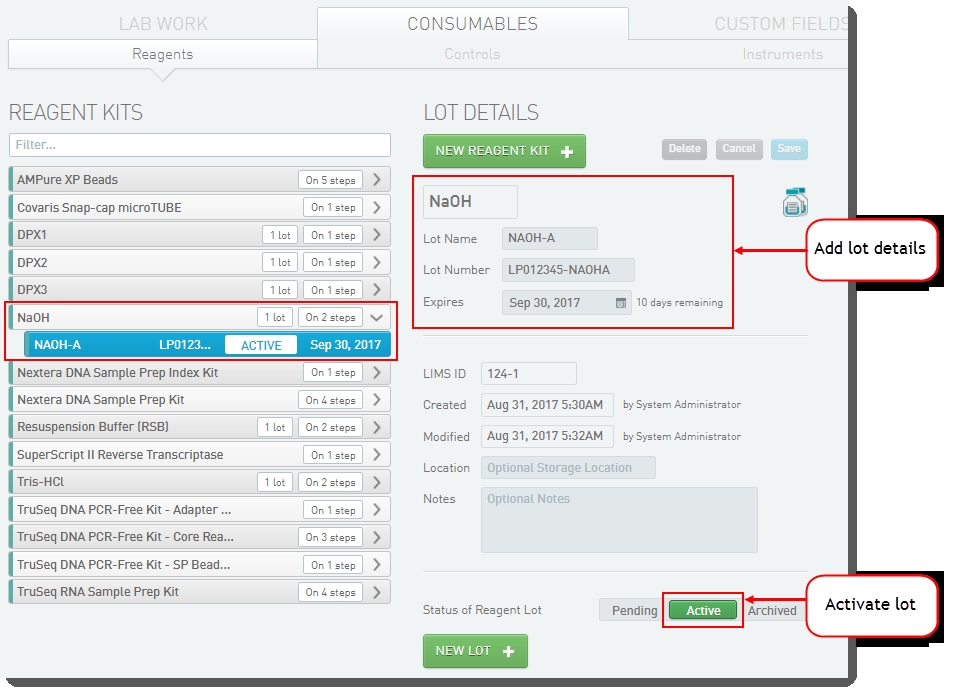 |
|
•
|
Repeat this process to add and activate Resuspension Buffer and Tris-HCI reagent lots. |
|
•
|
Close this browser tab and return to your original working tab. Refresh the page. |
|
5.
|
In the Reagent Lot Trackingsection, select from the active lots displayed in each drop-down list. 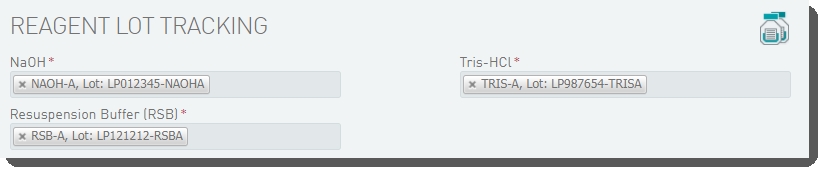 The fields displayed in the Step Details section are used to generate the sample sheet and run recipe files. Some of these fields are auto-populated and some must be completed by the user (see table below, for details). The fields displayed in the Step Details section are used to generate the sample sheet and run recipe files. Some of these fields are auto-populated and some must be completed by the user (see table below, for details). 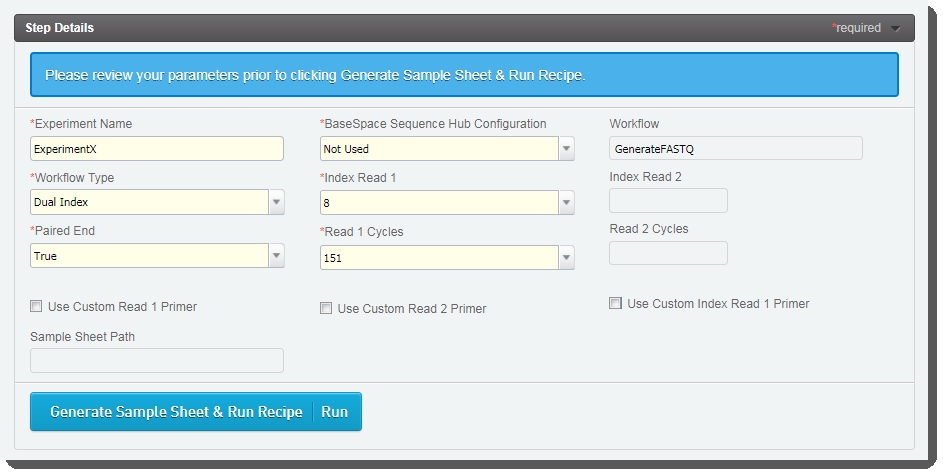 Fields displayed on Record Details screen of Denature and Dilute (NovaSeq 6000) 1.0 step Fields displayed on Record Details screen of Denature and Dilute (NovaSeq 6000) 1.0 step |
|
Field
|
Value
|
|
Experiment Name
|
Enter the experiment name. Only alphanumeric characters, dashes, and underscores are permitted. No spaces.
|
|
BaseSpace Sequence Hub Configuration
|
Select from preset options: Not Used, Run Monitoring Only, or Run Monitoring and Storage
|
|
Workflow Type
|
Select from preset options: No Index, Single Index, Dual Index, or Custom
|
|
Index Read 1
|
Select from preset options: 0, 6, or 8 - or type a value between 0 and 20.
|
|
Index Read 2
|
If Dual Index workflow type selected, once the sample sheet has been generated, Index Read 2 value is automatically populated to match Index Read 1.
|
|
Paired End
|
Select from preset options: True or False
|
|
Read 1 Cycles
|
Select from preset options: 151, 101, or 51 - or type a value between 1 and 151.
|
|
Read 2 Cycles
|
If Paired End = True, once the sample sheet has been generated, Read 2 Cycles value is automatically populated to match Read 1 Cycles.
|
|
Use Custom Read 1 Primer
|
Select if applicable.
|
|
Use Custom Read 2 Primer
|
Select if applicable.
|
|
Use Custom Index Read 1 Primer
|
Select if applicable.
|
|
Sample Sheet Path
|
Automatically populated once the sample sheet has been generated.
|
|
Workflow
|
Automatically populated with preset - GenerateFASTQ.
|
|
6.
|
On the Record Details screen, click Generate Sample Sheet and Run Recipe . This triggers the automation script: The sample sheet and JSON files are generated and attached to the placeholders in the Files area of the Record Detailsscreen. 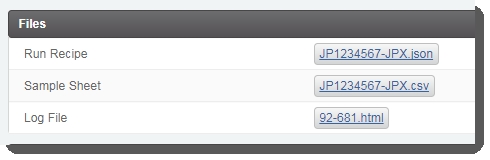 |
|
•
|
The Sample Sheet Pathfield is populated with the path to the sample sheet file. 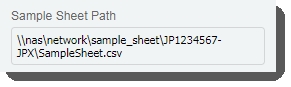 |
|
•
|
If applicable, the Index Read 2 and Read 2 Cycles fields are populated. 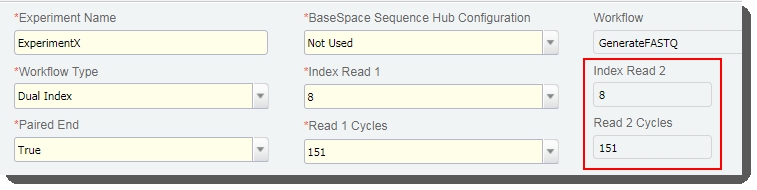 |
|
•
|
Click Next Steps. This triggers the Prepare Files for NovaSeq automation which does the following:Copies the sample sheet and run recipe files to the location specified during installation. The NovaSeq instrument software uses these files to set up the run. |
|
–
|
Sets the value of the next step to Remove from workflow. The Routing Script automation expects this value, and requires it in order to successfully advance samples to the next step. |
|
7.
|
On the Assign Next Steps screen: The Next Step for samples is pre-populated with Remove from workflow. Do not change this value! If Next Step is not set to Remove from workflow, the routing script will not be able to route samples correctly. |
|
8.
|
On exit from the step: The Routing Script automation is triggered and samples are routed to the AUTOMATED NovaSeq Run (NovaSeq 6000 v2.0) protocol. |
|
•
|
In Lab View, the pool of samples is queued for the AUTOMATED - NovaSeq Run (NovaSeq 6000 v2.0) step. |
At this point in the workflow, the user interaction ends. For details, see the NovaSeq 6000 Integration v2.1 - User and Configuration Guide.
Do not add samples to the Ice Bucket or start the AUTOMATED NovaSeq Run (NovaSeq 6000 v2.0) step. The integration will do this automatically.
7. Review data parsed by AUTOMATED NovaSeq Run (NovaSeq 6000 v2.0) step
The integration starts the AUTOMATED NovaSeq Run (NovaSeq 6000 v2.0) step automatically and data from the run is parsed back into the LIMS.
No user interaction is required. However, you may open and review the various stages of the step in the LIMS.
How the integration works
|
1.
|
When the user initiates a run on the NovaSeq instrument, the NovaSeq Control Software (NVCS) looks for the sample sheet and run recipe (*.json file) on the shared network drive.The NVCS copies the sample sheet to the run directory. |
|
•
|
The NVCS uses the run recipe to start the sequencing run. |
|
2.
|
When the run starts: The instrument software creates a new run folder on the shared network drive and copies the following files into that folder:RunParameters.xml |
|
–
|
LIMS/ <libraryID>.json file (run recipe) |
|
•
|
The Real-Time Analysis v3 (RTA3) software creates the InterOp folder. |
|
3.
|
The sequencing service detects the presence of the RunParameters, RunInfo, and JSON files and starts the AUTOMATED - NovaSeq Run (NovaSeq 6000 v2.0) step in the LIMS. |
|
4.
|
As the run progresses, the InterOp data files are filled in. |
|
5.
|
At the end of the run, the NovaSeq creates the CopyComplete.txt file in the run folder, which indicates to the sequencing service that the run has completed and the data files are ready. |
|
6.
|
The NovaSeq copies the run data files to the InterOp folder and the sequencing service triggers the Read InterOp Metrics automation, which reads the files, records the parsed metrics into the LIMS, and finally completes the step in LIMS. |
Parse Run Parameters and Generate Link to Run Folder automation
The Parse Run Parameters and Generate Link to Run Folder automation is automatically triggered on entry to the Record Details screen. This automation parses the RunParameters.xml file attached on the Step Setup screen and populates the step UDFs / custom fields with extracted values. For details on this automation, including how the parsed fields map to the step UDFs / custom fields, see the NovaSeq 6000 Integration v2.1 - User and Configuration Guide.
Read InterOp Metrics automation
Automatically triggered when the sequencing service detects the CopyComplete.txt file has been created, this automation parses the InterOp data generated by the run.
The read_interop_metrics script records summary metrics into the following global UDFs / custom fields in the LIMS. The script will fail if any field is not configured or cannot be written to.
|
•
|
Cluster Density (K/mm^2) R1 |
|
•
|
Cluster Density (K/mm^2) R2 |
For more details, see the User and Configuration Guide.
Set Next Steps automation
This automation sets the next step for all samples to Mark protocol as complete. For more details, see the User and Configuration Guide.
Troubleshooting
If an automation trigger does not appear to run its corresponding scripts, see the following articles:
|
•
|
Troubleshooting Automated Informatics in the Clarity LIMS documentation, Automated Informatics section |
|
•
|
Troubleshooting EPP / Automation in the API > Clarity LIMS API Overview > API Advanced Topics section |
If an error occurs that does not provide direction on how to proceed, complete the following steps:
|
1.
|
Confirm the version of the installed Illumina NovaSeq Integration Package by running the following command: |
rpm -qa | grep -i novaseq
|
•
|
For an on-premise installation, run the command on the LIMS server command line. This will retrieve the version of both RPMs installed. |
|
•
|
For a Software as a Service (SaaS) installation, run the command on your local server installation. This will retrieve the version of the remote extensions RPM installed. |
|
2.
|
If the error is related to the AUTOMATED - NovaSeq Run (NovaSeq 6000 v2.0) step, there are two places to check for log file information: |
|
•
|
If the step does not start, check the NovaSeqIntegrator.log log file written to: |
/opt/gls/clarity/extensions/novaseq/SequencingService/NovaSeqIntegrator.log
|
•
|
If the step starts but does not complete, open the step in the LIMS (it can be found via a search). On the Record Details screen, the log file will be attached to a placeholder called Log File. If you are unable to reach the Record Details screen (for example, if the step stopped execution on the Step Setup screen), or if the file does not contain an error, review the NovaSeqIntegrator.log described above. |
|
3.
|
Contact the BaseSpace Clarity LIMS support team, supplying the relevant information from the troubleshooting steps already performed. |
Additional troubleshooting information is provided on the Illumina Integrations FAQ page.